Setup guide
SmartMarket: setting up your own copy
Start a new machine from a snapshot of the shop, give it its own address, and check it in your browser. No prior server experience assumed.
Abad Naseer · 17 August 2026 · every command run against the live server
You have a working shop, SmartMarket, running on one machine. This guide takes a photograph of that machine, starts a second one from the photograph, and gives the second one its own web address.
Nothing gets built. The copy arrives finished and already running. The work is telling it its new name.
The shop this copy is made from: https://marketz.smartzees.com
Every command below was run against the live machines. Wherever a command appears, the line under it says what you should see when it worked. If you see something else, that is where to stop and look.
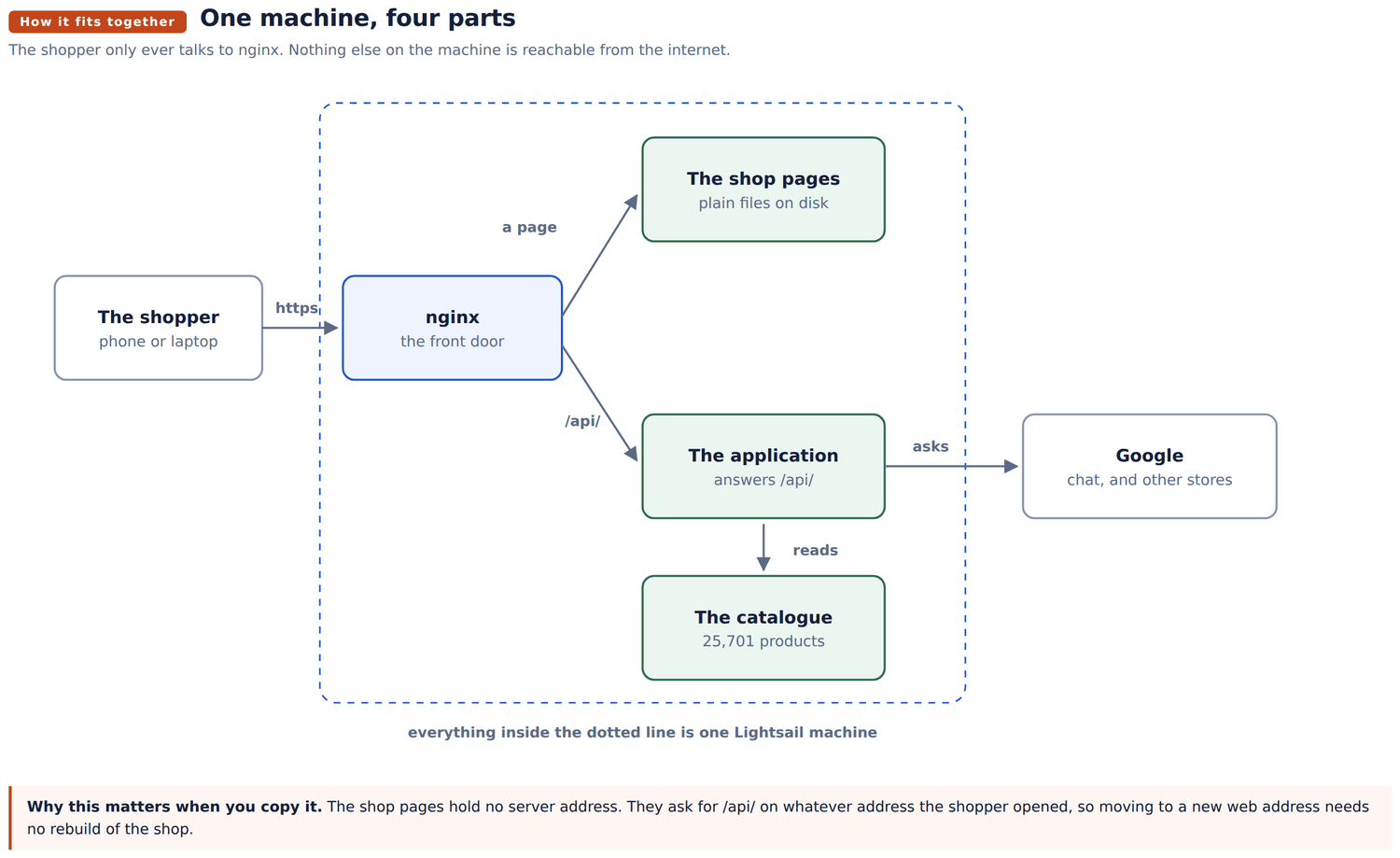
Four parts, all on one machine.
| Part | Its job |
|---|---|
| nginx | The front door. The only part open to the internet. |
| The shop pages | Plain files. No program running. |
| The application | Answers anything under /api/. |
| The catalogue | MySQL, on the same machine. 25,701 products. |
Four places the commands below refer to:
| Thing | Where it lives |
|---|---|
| The application | /var/www/ai-order/backend, service name aiorder |
| The shop pages | /var/www/ai-order/frontend-dist |
| The settings file | /var/www/ai-order/backend/.env |
| The front door file | /etc/nginx/sites-available/aiorder-dev |
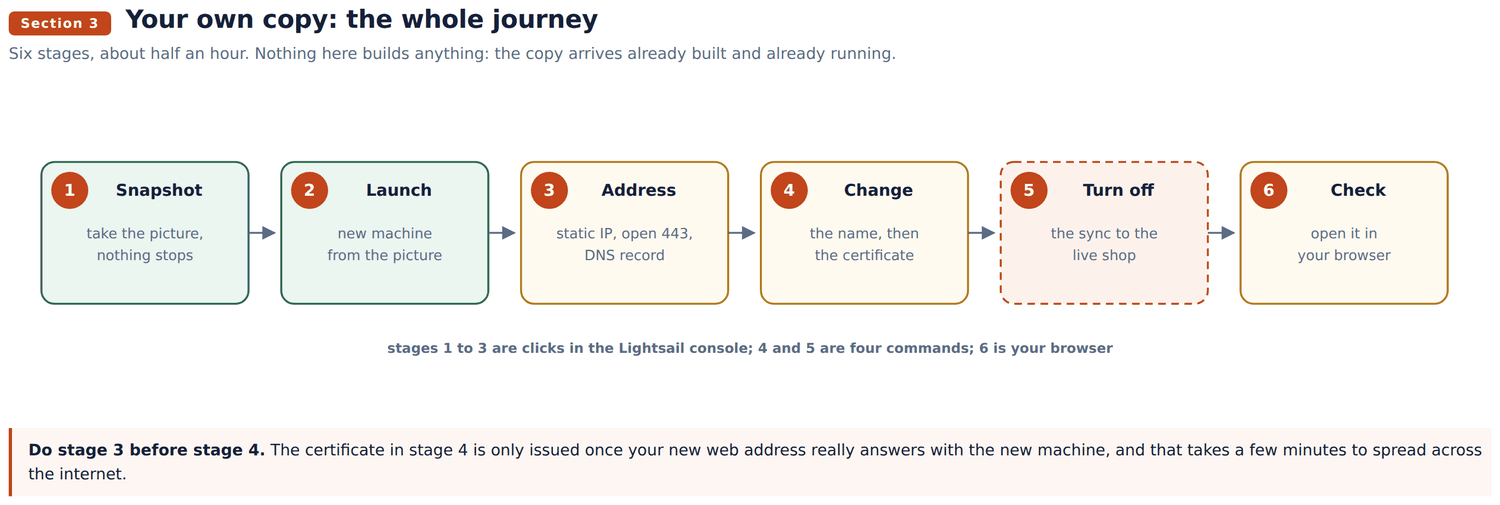
Six stages, about half an hour. Most of it is waiting for the new web address to spread across the internet.
In the Lightsail console, open the shop's instance, go to the Snapshots tab and press Create snapshot. Give it today's date as a name.
Nothing stops. Customers on the live shop notice nothing. It takes a few minutes because the disk is about 31 GB.
You should see: the snapshot in the list, with the word Available next to it. Until it says that, it cannot be used.
On the snapshot, press Create new instance.
Pick a plan at least as large as the original. The original is a 2 GB machine, so choose 2 GB or bigger. Lightsail will not let you go smaller.
Then attach a static IP to the new instance. Without one, the address changes every time the machine restarts and your web address stops working.
You should see: the new instance turn Running after a minute or two.
That is the whole build. Connect to it and ask the three parts whether they are awake:
ssh -i ~/Downloads/your-key.pem ubuntu@NEW.IP.ADDRESS
for s in nginx mysql aiorder; do systemctl is-active $s; done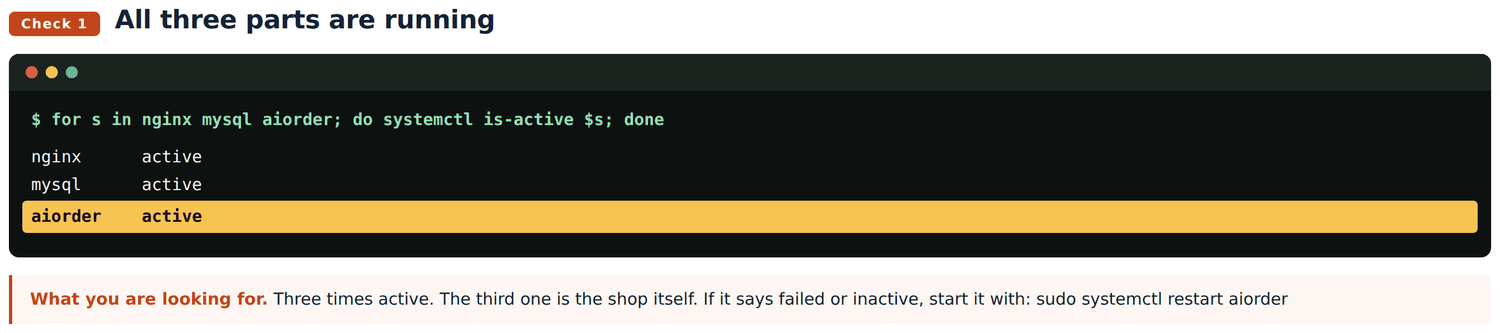
Open the doors. In the Lightsail console for the new instance, open Networking and add two rules: HTTP on port 80, and HTTPS on port 443.
Port 443 is the one everybody forgets. A brand new instance blocks it, and the symptom is confusing: the address simply spins forever and never loads.
Leave port 3306 closed. That is the catalogue, and it only ever talks to the application sitting beside it on the same machine.
Point your web address at it. In the DNS settings for your domain, add an A record: the name is your new subdomain, the value is the new static IP.
dig +short yourname.smartzees.comYou should see: the new IP address. Nothing at all, or the old address, means it has not spread yet. Wait a few minutes and run it again. Stage 4 will fail until this is right.
The copy still believes it is the old shop. Three files, in this order.
First, check nginx is reading the file you are about to edit. On this machine there are two files with the same name, and only one of them counts.
ls -l /etc/nginx/sites-enabled/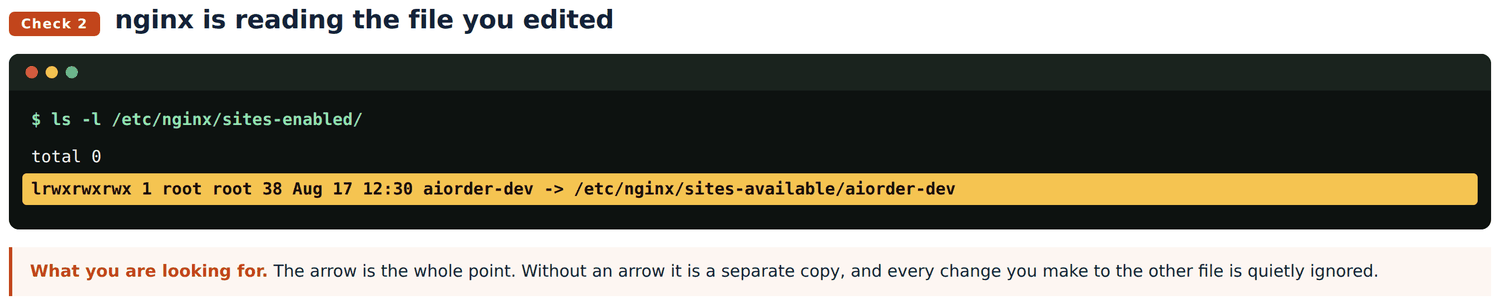
If there is no arrow, run these three lines once, and then the arrow will be there:
sudo rm /etc/nginx/sites-enabled/aiorder-dev
sudo ln -s /etc/nginx/sites-available/aiorder-dev /etc/nginx/sites-enabled/aiorder-dev
ls -l /etc/nginx/sites-enabled/
Now change the name.
sudo nano /etc/nginx/sites-available/aiorder-devFind every line starting with server_name and put your address there instead. There are two of them. Save with Ctrl+O, then Enter, then Ctrl+X.
sudo nginx -t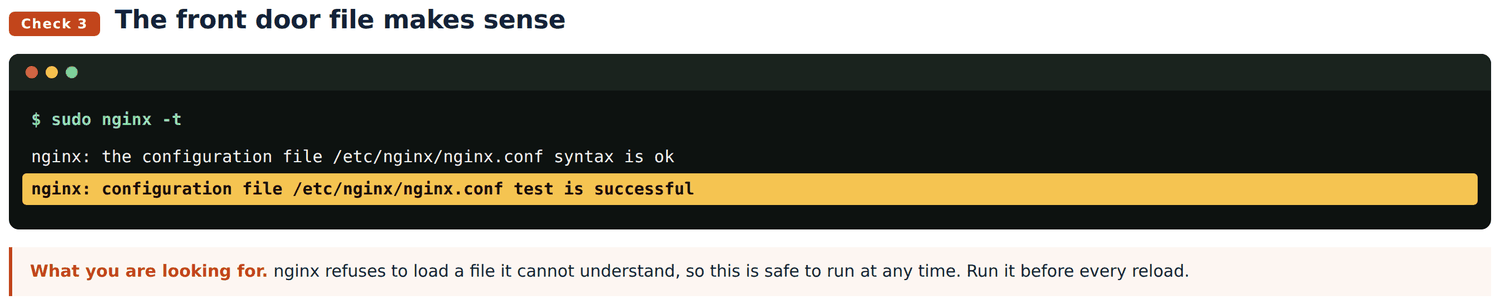
Then get your own padlock. The certificate in the copy belongs to the old shop, so browsers will warn about it until you have your own.
sudo certbot --nginx -d yourname.smartzees.com --agree-tos -m you@example.com --redirect
sudo systemctl restart nginx
You should see: the word "Congratulations". If instead it complains that it cannot reach the address, stage 3 has not finished spreading. Wait, then run it again.
The restart on the second line is not a typo and it is not optional. A reload is not enough after a certificate changes: nginx keeps serving the old one until it is fully restarted.
Last, tell the application its new address.
sudo nano /var/www/ai-order/backend/.envChange these four lines, and nothing else:
| Line | Change it to |
|---|---|
FRONTEND_URL | https://yourname.smartzees.com |
PUBLIC_BASE_URL | https://yourname.smartzees.com |
DB_PASSWORD | a new password of your own |
ADMIN_TOKEN | a new one you invent |
The first two are the addresses put in emailed receipts and payment return links. Left alone, your customers get sent back to the old shop after paying.
If you change DB_PASSWORD in the file, change it in the database too, or the application cannot get in:
sudo mysql -e "ALTER USER 'aiorder'@'localhost' IDENTIFIED BY 'YOUR_NEW_PASSWORD';"
sudo systemctl restart aiorder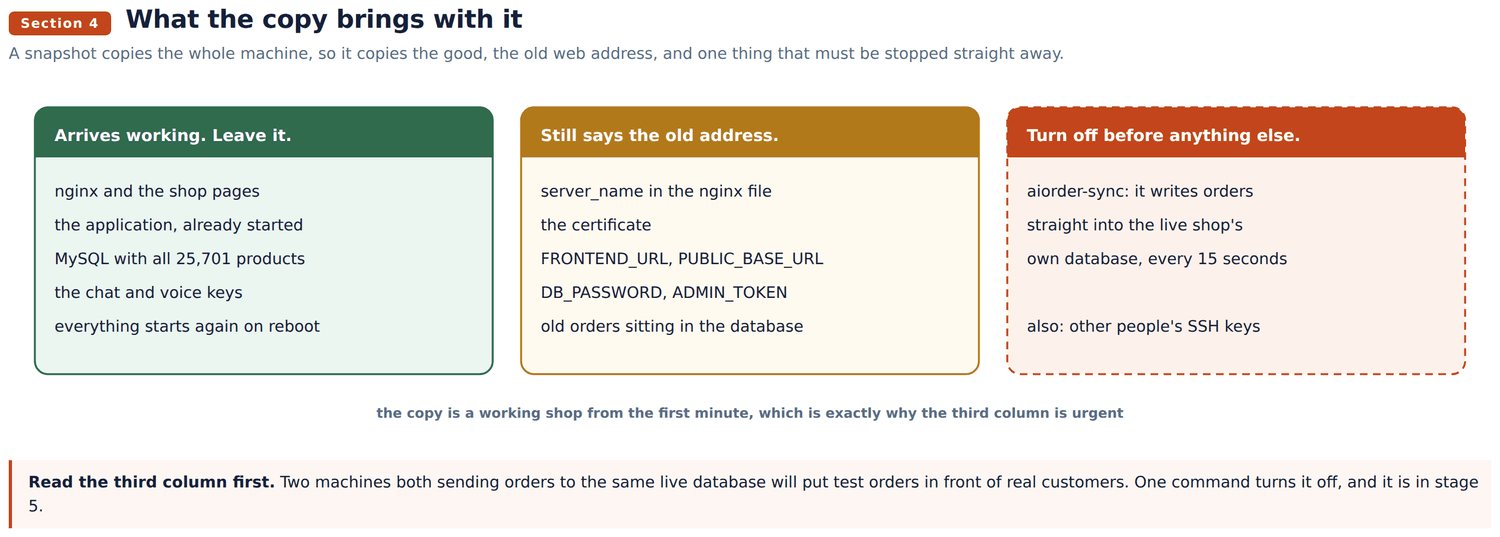
This is the one that matters more than anything else on the page.
The copy inherited a small program called aiorder-sync. Every fifteen seconds it takes new orders and writes them into the live shop's own database, the real one. On a copy that means your test orders land in front of real staff.
It starts by itself when the machine boots. Turn it off now:
sudo systemctl disable --now aiorder-sync
systemctl is-active aiorder-sync
You should see: inactive. That is the correct answer here, and the only time in this guide that inactive is good news.
Turn it back on only if this copy is meant to replace the original.
While you are here, the copy also carries the login keys of everyone who could reach the original machine. Open the list, keep your own line, delete the rest:
nano ~/.ssh/authorized_keysTwo commands on the machine:
mysql -u aiorder -p -e "SELECT COUNT(*) FROM aidata2prd_dev.items;"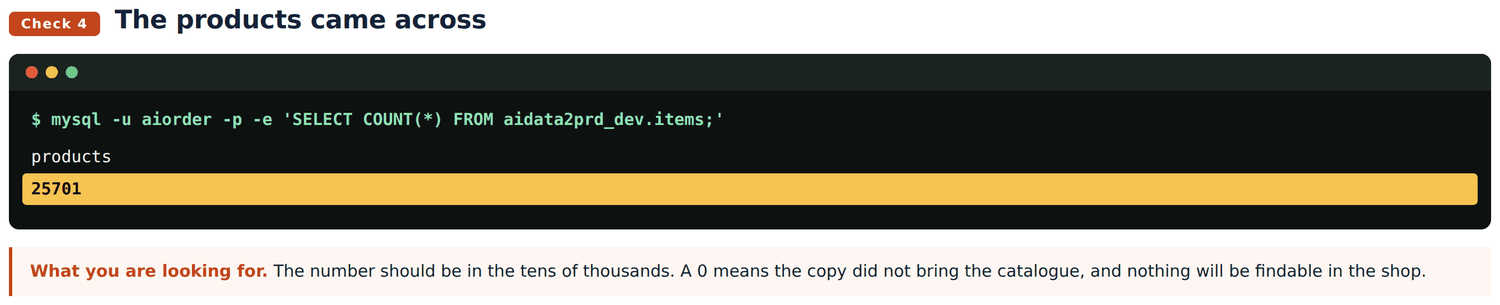
curl -sk -o /dev/null -w "shop page %{http_code}\n" https://127.0.0.1/ -H "Host: yourname.smartzees.com"
curl -sk -o /dev/null -w "health    %{http_code}\n" https://127.0.0.1/health -H "Host: yourname.smartzees.com"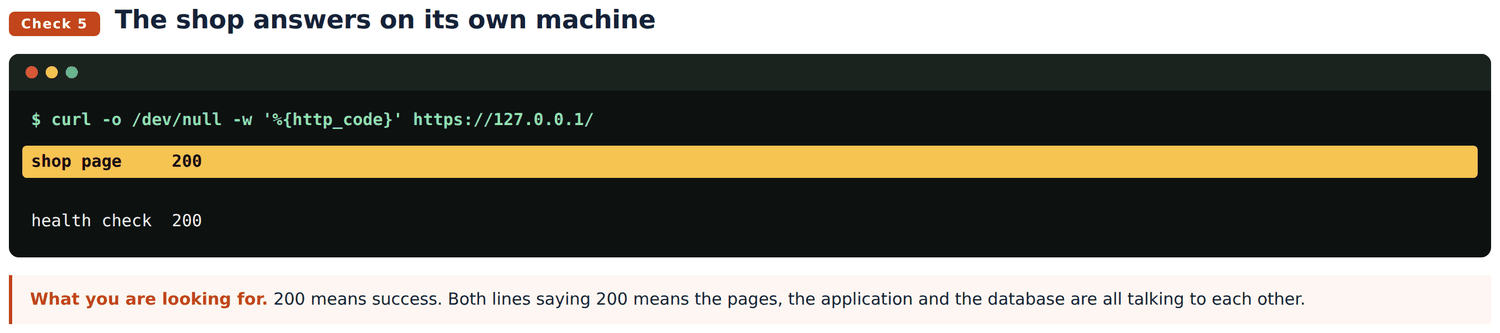
Both 200. The machine is happy with itself. Now go and prove it from outside, which is section 4.
The machine saying 200 to itself is not the same as a customer being able to buy something. Four things to try, in this order. Each one exercises a different part of the diagram in section 2.
Type https://yourname.smartzees.com into your browser.
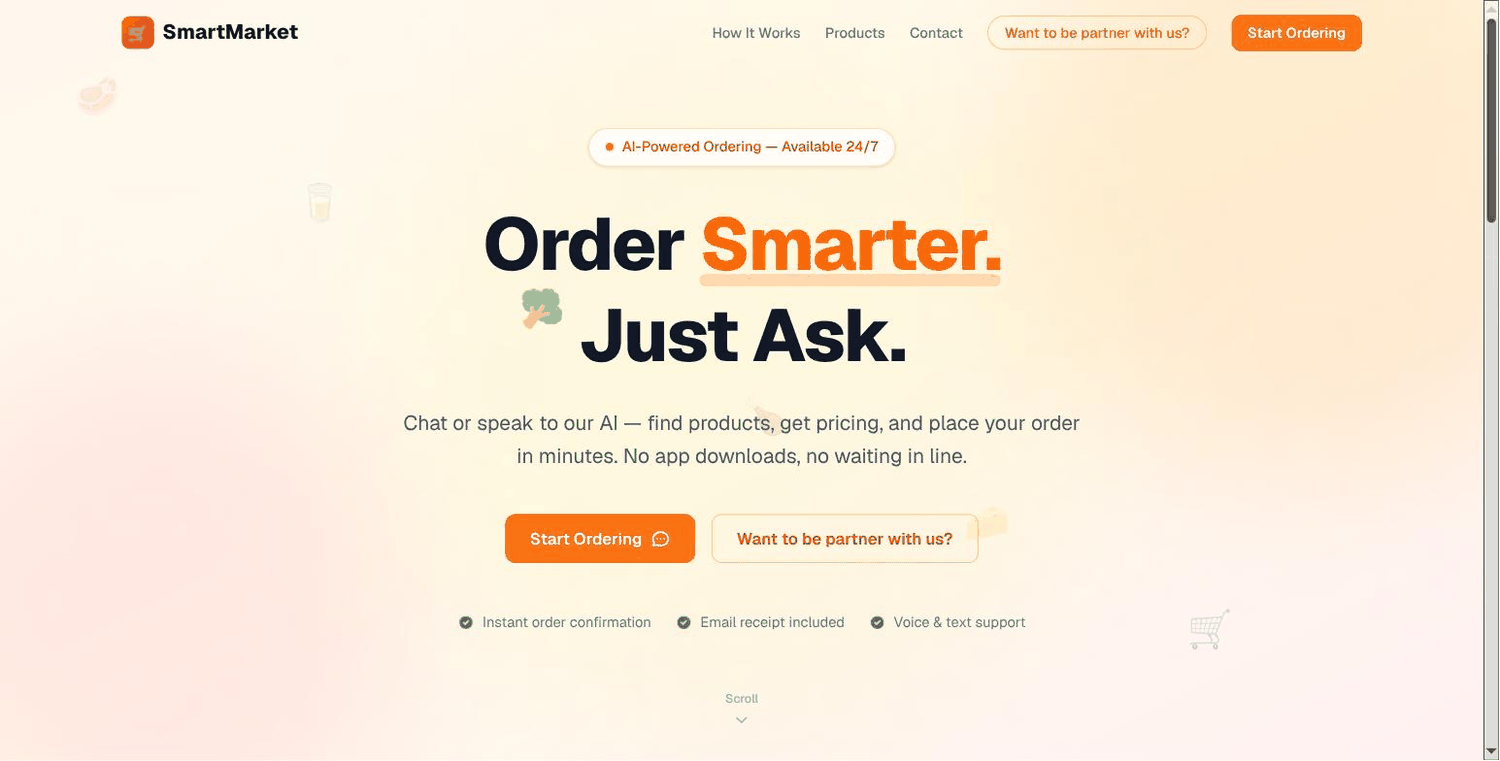
What you are checking: the padlock in the address bar is closed, with no warning, and the page is your shop. A closed padlock means stage 4 worked. A page that never loads means port 443 in stage 3 was missed.
Press Start Ordering and type I need milk.
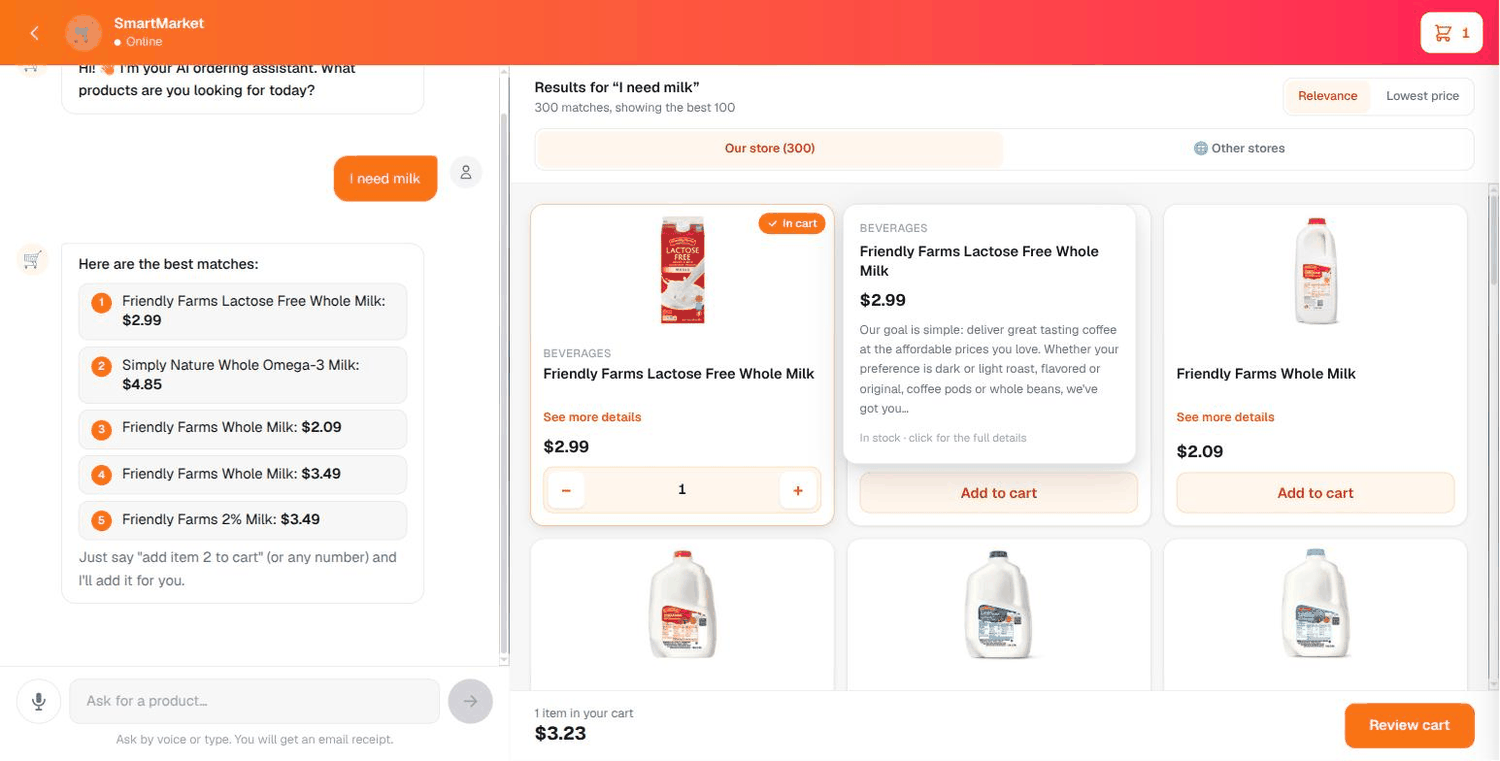
What you are checking: products come back within a few seconds, each with a picture and a price, and the counter at the top says how many matched. This one sentence proves the application, the catalogue and the chat assistant are all working, because a result cannot appear without all three.
If the page loads but nothing ever comes back, the application has stopped: sudo systemctl restart aiorder.
Press Add to cart on any product, then the basket icon at the top right.
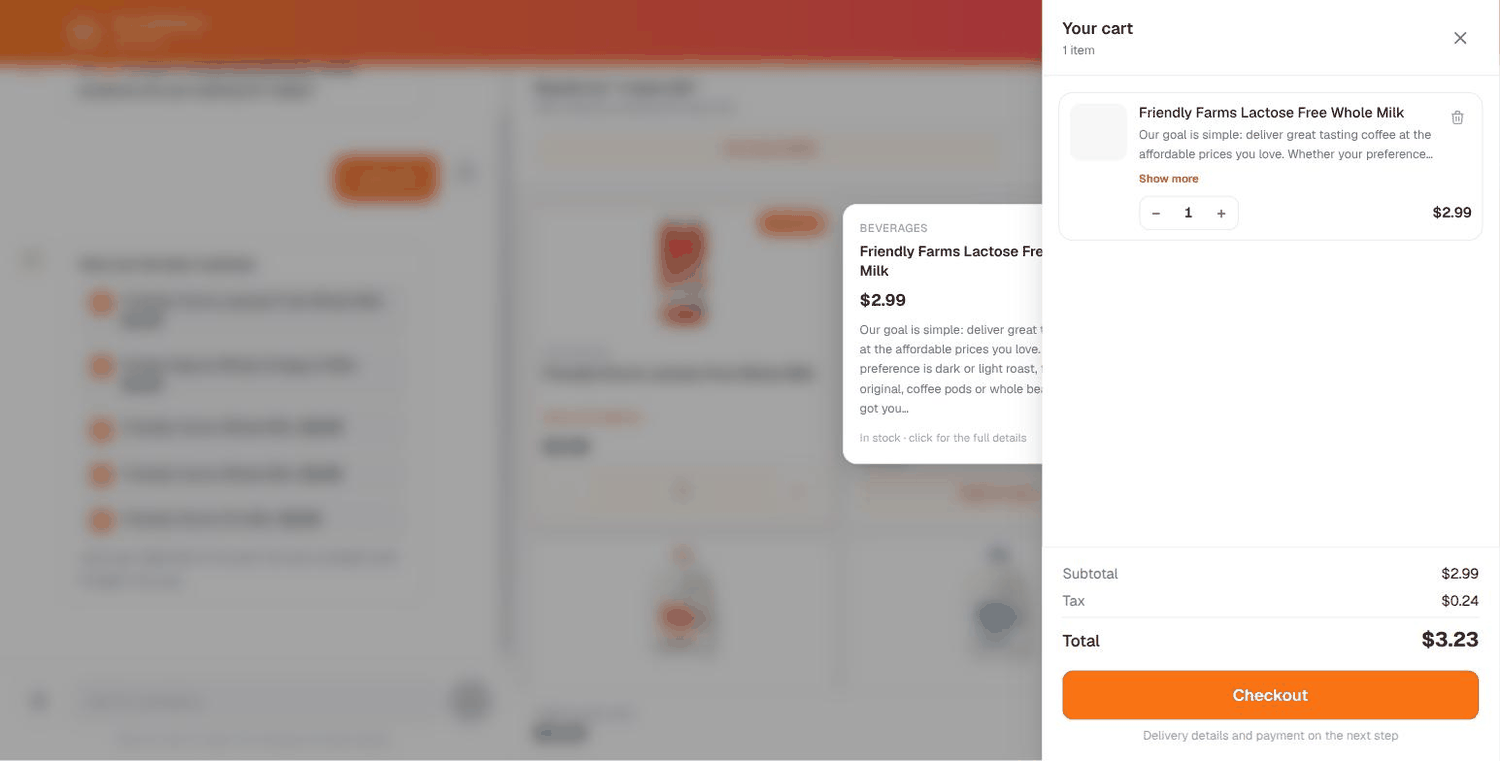
What you are checking: the item is listed, and a subtotal, tax and total appear at the bottom. Tax being calculated means the application is doing real work, not showing you a stored page.
Open the same address on a phone, on mobile data rather than your own wifi.
What you are checking: two things at once. The shop is genuinely reachable from the outside world and not just from your desk, and it looks right on the screen most of your customers will use.
| What you want | What to type |
|---|---|
| Is the shop running | systemctl status aiorder |
| Restart the shop | sudo systemctl restart aiorder |
| Watch it as it works | sudo journalctl -u aiorder -f |
| The last fifty lines | sudo journalctl -u aiorder -n 50 |
| Reload the front door | sudo nginx -t && sudo systemctl reload nginx |
| Check the padlock | sudo certbot certificates |
| Back up the catalogue | mysqldump -u aiorder -p aidata2prd_dev > backup.sql |
| How full the disk is | df -h / |
The padlock renews itself every ninety days, so certbot certificates is only worth running if a browser complains.
Two paths, and they are different because the pages folder belongs to the system while the application folder belongs to you.
The application:
rsync -az --delete backend/app/ ubuntu@HOST:/var/www/ai-order/backend/app/
ssh ubuntu@HOST 'sudo systemctl restart aiorder'
The shop pages, built on your own computer because the server has no build tools on it:
cd ai-order && npm run build:deploy
rsync -az --delete out/ ubuntu@HOST:/tmp/fe-stage/
ssh ubuntu@HOST 'sudo rsync -a --delete /tmp/fe-stage/ /var/www/ai-order/frontend-dist/ \
  && sudo chown -R www-data:www-data /var/www/ai-order/frontend-dist/'
Use build:deploy, not build. A plain build bakes in a local test address and the shop then talks to nothing.
Neither of these touches the settings file or the catalogue. That is deliberate, and it is why putting the old code back is always safe.
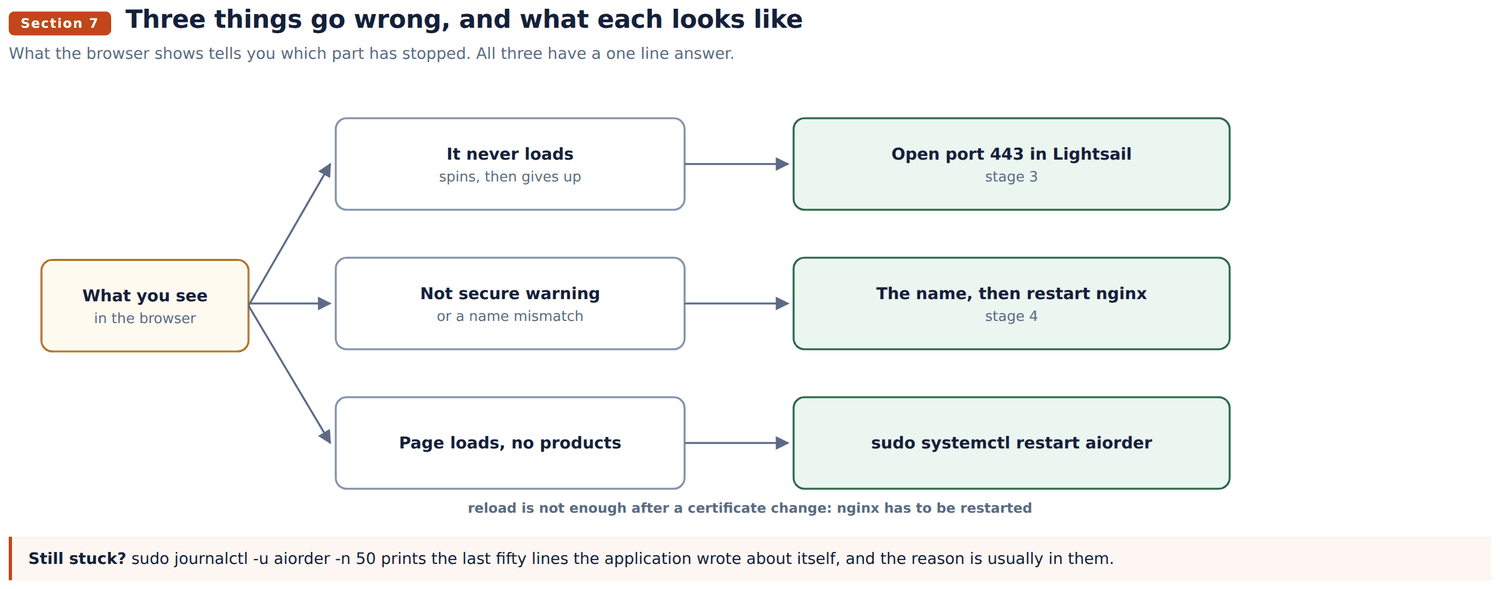
| What the browser shows | What it means | What to do |
|---|---|---|
| Spins forever, never loads | Port 443 is still closed | Add the HTTPS rule, stage 3 |
| "Not secure", or a name warning | The certificate is still the old one | Stage 4, and remember restart |
| Page loads, no products ever | The application stopped | sudo systemctl restart aiorder |
| Products, but no pictures | Pictures come from another server | Nothing on this machine to fix |
When none of those fit:
sudo journalctl -u aiorder -n 50That prints the last fifty lines the application wrote about itself. The reason is usually in them, in plain English.
The catalogue is held in memory. All 25,701 products are loaded when the application starts, which is why a search answers in about a fifth of a second and why the first few seconds after a restart are slower than the rest.
Searches outside the catalogue cost money. When the shop has nothing matching, it asks Google. That is a paid service with a monthly allowance shared by every copy using the same key, so a busy test copy spends the original shop's allowance.
The catalogue is not backed up automatically. The mysqldump line in section 5 is the whole of it. Run it before you change anything you cannot undo.
Two things the copy inherits that are worth fixing. The database accepts connections from the internet rather than only from the machine itself, and the old spare copies of the shop pages sit in /var/www/ai-order/ taking up several gigabytes. Neither stops anything working.